
Shopify metaobjects are content types you define yourself, such as a material, a size chart or a designer profile, each with up to 40 fields. You create an entry once and attach it to any number of products, so one edit updates every product that uses it. A metafield adds one field to something Shopify already has. A metaobject creates a new kind of record.
Shopify’s developer docs put the difference in one line each: a metafield is “an extra field on an existing resource”, and a metaobject is “a new record type that you define”. This tutorial builds one from start to finish, a Material type for a clothing store, and shows each place it can appear on the storefront.
The short version:
- Define the type under Settings > Custom data > Metaobjects: its name and its fields.
- Add entries under Content > Metaobjects, one per material.
- Link entries to products with a product metafield whose type is a metaobject reference.
- Show them with a dynamic source in the theme editor, in Liquid, or as their own web pages.
- Stay inside the limits, the main one being 50 entries per loop in Liquid without pagination.
The definition takes a few minutes in the admin. Most of the work is deciding what deserves its own type.
What is the difference between metafields and metaobjects?
A metafield stores extra data on something Shopify already has, like a product’s care instructions. A metaobject is a separate record with several fields of its own, which you link to products, collections or pages through a metafield. In practice you usually use both: the metaobject holds the content, and a metafield points at it.
| Metafield | Metaobject | |
|---|---|---|
| What it is | One extra field on an existing resource (product, variant, collection, customer, order) | A new record type with up to 40 fields |
| Where it lives | On the product, collection or other resource | In its own list under Content > Metaobjects |
| Reuse | Belongs to one resource | One entry can be linked from any number of resources |
| Editing | Edit it on each product | Edit the entry once, and every product that links to it updates |
| Own web page | No | Yes, if you turn on web pages for the type |
| Good for | A model number, a care note, a launch date | A material, a size chart, a designer, a store location, an FAQ |
Sources: Shopify’s custom data overview and its Help Center pages on metafields and metaobjects.
The test is simple. If the same piece of content would otherwise be typed into 30 products and kept in sync by hand, it should be a metaobject.
When should you use a metaobject?
Use a metaobject when the thing you’re describing has several fields that belong together, exists apart from any one product, and is reused. Shopify’s own docs list size charts, author profiles, ingredient lists, warranty information, product highlights and FAQs. A designer profile shared across a range of products is its worked example.
Good candidates on a typical store:
- Materials or ingredients, each with a composition, care or allergy notes and a swatch.
- Size charts, one per garment type rather than one per product.
- Designers, makers or authors, each with a bio, a photo and a link.
- Store locations or stockists, each with an address, opening hours and a map link.
- Shared FAQs or warranty terms reused across a product line.
Keep a plain metafield when you need one value on one product, such as a model number. And keep price, stock and anything fulfilment depends on in products, variants and inventory. A metaobject is structured content, not a second inventory system.

One card per ingredient is the right picture of a metaobject: each entry is written once and reused wherever it’s needed.
How do you create a metaobject definition in Shopify?
From your Shopify admin, go to Settings > Custom data, open Metaobjects and click Add definition. Name the type, add its fields and choose its options. Shopify’s building guide also lets you start from Content > Metaobjects.
For the Material example:
| Field name | Field type | Why this type |
|---|---|---|
| Name | Single line text | The display name, such as “Organic cotton” |
| Composition | Single line text | “100% organic cotton”, shown under the name |
| Care | Multi-line text | Washing and drying instructions |
| Swatch | File (image) | A close-up of the fabric |
Metaobject fields use the same data types as metafields. That includes references to products, collections, files and other metaobjects, and a list version of most types.
Then the options. Shopify lists them on its options page:
- Storefronts access. Turn it on. Shopify’s Help Center says it lets you use the metaobject “in your Online Store either through Liquid or the Storefront API”.
- Active-draft status. Turn it on, so an entry can be prepared as a draft before it goes live.
- Translations. Turn it on if the store sells in more than one language.
- Publish entries as web pages. Optional. It gives every entry its own URL; see the web pages section below.
Choose the type’s handle carefully, because Liquid and the APIs refer to it. material is better than materials-v2-new.
How do you add metaobject entries?
Go to Content > Metaobjects, open the Material type and click Add entry. Fill in the fields and save. Entries created in the admin are Active by default, according to Shopify’s guide to creating entries, so set one to Draft if it isn’t ready.
Each entry gets a handle, such as organic-cotton. You’ll use it in Liquid, so keep handles short, lowercase and hyphenated, and don’t rename them once the theme refers to them.
How do you connect a metaobject to products?
Create a product metafield whose type is a metaobject reference, then pick entries on each product. For Material:
- Go to Settings > Custom data > Products and click Add definition.
- Name it “Materials”. Shopify fills in the key
custom.materials. - Choose the type Metaobject, select the Material definition and choose List of entries, because one garment can use several fabrics.
- Save. Open any product, find Materials in the metafields section and pick its entries.
To show them without code, open the theme editor, add or select a block on the product template and click Connect dynamic source. Shopify’s guide to connecting metaobjects adds one rule: the field’s type has to match the type of content the block accepts. A text block takes a text field, and an image block takes the swatch.
This needs an Online Store 2.0 theme or a newer theme-blocks theme such as Horizon. Shopify’s theme versions page says vintage themes don’t support dynamic sources, so on those it takes Liquid.
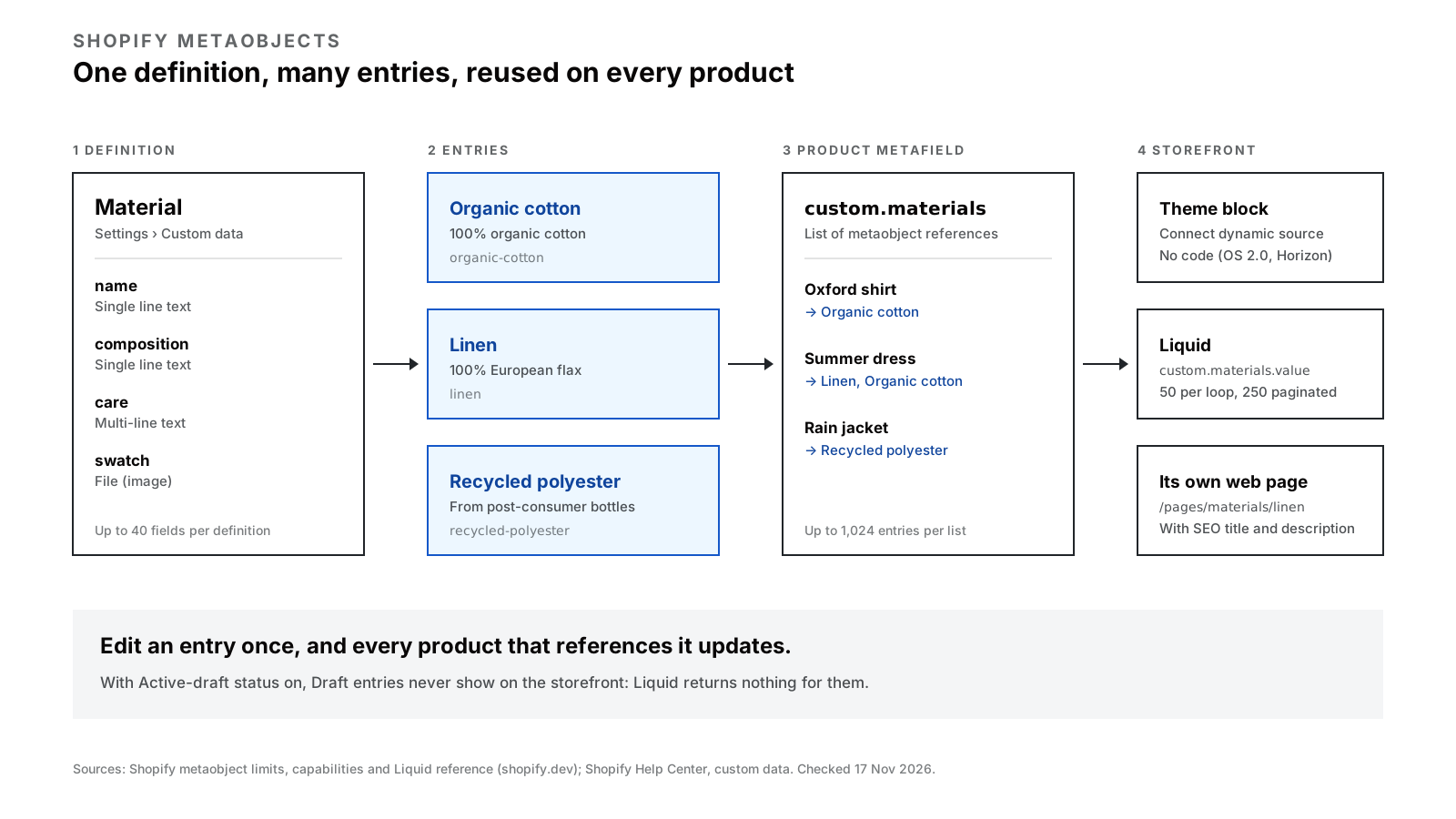
Diagram — one definition, many entries, linked to products through a metafield and shown in three ways.
How do you show metaobjects in Liquid?
There are three ways in, and most themes use the first.
1. Through the product’s metafield. This is the normal case on a product page:
{%- assign materials = product.metafields.custom.materials.value -%}
{%- if materials != blank -%}
  <ul class="materials">
    {%- for material in materials -%}
      <li>
        {%- if material.swatch.value != blank -%}
          {{ material.swatch.value | image_url: width: 96 | image_tag: alt: material.name.value }}
        {%- endif -%}
        <strong>{{ material.name.value }}</strong>
        <span>{{ material.composition.value }}</span>
      </li>
    {%- endfor -%}
  </ul>
{%- endif -%}
2. One entry directly, by handle. Useful for a single shared block, such as a care guide in the footer:
{%- assign cotton = metaobjects.material['organic-cotton'] -%}
{%- if cotton -%}
  <p>{{ cotton.care.value | newline_to_br }}</p>
{%- endif -%}
3. Every entry of a type. For a “Our materials” page, loop over .values inside paginate:
{%- paginate metaobjects.material.values by 50 -%}
  {%- for material in metaobjects.material.values -%}
    <a href="{{ material.system.url }}">{{ material.name.value }}</a>
  {%- endfor -%}
  {{ paginate | default_pagination }}
{%- endpaginate -%}
material.system.url is only set when the type publishes its entries as web pages, according to Shopify’s Liquid reference for metaobject_system. If a type uses Active-draft status, draft entries come back as nil and are skipped in loops, so a half-finished entry never leaks onto the storefront.
The Liquid limits catch people out, so here they are per page render, from Shopify’s metaobject limits page:
| Liquid access | Limit |
|---|---|
Looping over .values or a list reference without paginate |
50 entries |
Looping with paginate |
250 entries per page |
| Unique entries per type | 1,000 |
Unique handles per type through metaobjects.TYPE[handle] |
20 |
Definitions through the metaobjects object |
50 |
Can a metaobject have its own web page?
Yes. Turn on Publish entries as web pages in the type’s options and every Active entry gets its own URL, in the form /pages/<type-url-handle>/<entry-handle>. A Material type with the URL handle materials would give /pages/materials/linen. Shopify’s guide to metaobject web pages covers the setup.
What you get:
- A template at
templates/metaobject/material.json, which you design once in the theme editor for every entry of the type. - SEO fields. You choose which fields become the page title and meta description, and you can edit each entry’s URL handle under “Search engine listing”.
- Sitemap entries. Shopify’s capabilities docs say renderable entries are included in the store’s
sitemap.xml.
This is the most underused part of metaobjects. A page for each designer, ingredient, material or store location is a page that can rank for searches like “what is Tencel” or “[brand] stockists in Manchester”. It also links naturally to the products that use it. Our Shopify SEO guide covers what makes such a page worth indexing. The short answer is real content, not a name and a photo.
What are the limits on Shopify metaobjects?
| Limit | Value |
|---|---|
| Definitions per store | 128 on Basic, Shopify and Advanced; 256 on Plus and Enterprise |
| Fields per definition | 40 |
| Entries per definition | 1,000,000 |
| Entries one list metafield can reference | 1,024 |
| Shopify’s standard definitions | Don’t count towards the limits |
Source: Shopify’s metaobject limits page, checked on 17 November 2026.
The entry cap went up recently. Shopify’s changelog of 24 October 2025 raised it to 1,000,000 per definition, removing “previous plan-based restrictions of 64,000 (non-Plus) and 128,000 (Plus)”. Older tutorials that quote the lower caps are out of date.
Is your store already using metaobjects?
Yes, if your products have category metafields such as Color or Fabric. Shopify’s Help Center says “category metafields use metaobjects and metaobject entries for the values”. Each value maps to a category in Shopify’s Standard Product Taxonomy. That is why renaming a colour entry from Black to Graphite changes it on every product that uses it.
The colour swatches many themes show on product options work the same way. They come from a standard definition, shopify--color-pattern, linked to the shopify.color-pattern product metafield. Shopify reserves these standard types, and they don’t count towards your 128 or 256.
Before you build a custom Colour or Material type, check whether a category metafield already covers it. If it does, use Shopify’s version and save your own types for what the taxonomy doesn’t have, like designers, size charts or store locations. Otherwise the same fact ends up in two places that drift apart.
Metaobjects for developers: the APIs and app-owned types
The Admin GraphQL API (stable version 2026-10) creates and edits everything the admin can. metaobjectUpsert is the one to know for imports, because it “creates or updates a Metaobject based on its handle”, so a re-run doesn’t create duplicates:
mutation UpsertMaterial {
  metaobjectUpsert(
    handle: { type: "material", handle: "organic-cotton" }
    metaobject: {
      fields: [
        { key: "name", value: "Organic cotton" }
        { key: "composition", value: "100% organic cotton" }
      ]
    }
  ) {
    metaobject { id handle }
    userErrors { field message code }
  }
}
Four things worth knowing in 2026:
- The Storefront API (for headless stores) returns only Active entries of types whose storefront access is
PUBLIC_READ, and needs theunauthenticated_read_metaobjectsscope. See themetaobjectsquery. - The new
valuesinput (API version 2026-07) sets fields as one JSON object. Shopify’s changelog warns that “omitted keys are cleared”, so send the whole entry, not just the field you changed. - App-owned types use the reserved
$app:prefix and can be declared inshopify.app.toml. A[metaobjects.app.author]block creates the type$app:author. Shopify’s guide notes these declarative definitions are read-only through the Admin API. Since the Spring ’26 Edition, they need no access scopes. - Bulk imports. Shopify’s Help Center doesn’t describe a CSV import for metaobject entries. Large catalogues are loaded through the API, as above, or with an import app.

Upsert by handle, so an import can be run twice without creating duplicate entries.
Common metaobject mistakes
- Free text where a reference belongs. A product’s material typed as text can’t be filtered, reused or renamed in one place. Make it a reference to an entry.
- Storefronts access left off. Shopify’s Help Center ties both Liquid and Storefront API use to this option, and a headless storefront can’t read the type at all without it. Turn it on for any type the store shows.
- Entries left in Draft. If the type uses Active-draft status, drafts return
nilin Liquid. - Looping past 50 without
paginate. The 51st entry onwards silently doesn’t render. - One type per collection. “Summer materials” and “Winter materials” should be one Material type, perhaps with a season field.
- Renaming handles after launch. Liquid that refers to
metaobjects.material['organic-cotton']breaks when the handle changes. - Building a custom type Shopify already has. Check the category metafields and standard definitions first.
When it’s worth getting help
Most stores can set up one or two metaobjects themselves in an afternoon. It’s worth bringing in a developer when the content model spans several types that reference each other, when a vintage theme needs Liquid to show anything, or when a large catalogue has to be imported cleanly.
Designing metafields and metaobjects as a content model is part of our Shopify theme development work; see pricing. If you’re weighing a theme change against an app or a headless build, our theme vs app vs headless guide sets out the trade-offs. Or book a free 30-minute call and we’ll look at your catalogue with you.
FAQs
What is a metaobject in Shopify?
A metaobject is a custom content type you define in Shopify, such as a material, designer or size chart, with up to 40 fields. You create entries of that type under Content > Metaobjects and link them to products, collections or pages through metafields. Editing an entry once updates everywhere it’s used.
What is the difference between metafields and metaobjects in Shopify?
A metafield adds one extra field to a resource Shopify already has, such as a product or customer. A metaobject is a separate record type with several fields of its own. Metaobjects are usually linked to products through a metafield whose type is a metaobject reference.
How many metaobjects can a Shopify store have?
A store can create 128 metaobject definitions on Basic, Shopify and Advanced plans, and 256 on Plus and Enterprise. Each definition can have up to 40 fields and up to 1,000,000 entries. Shopify’s standard definitions don’t count towards these limits.
How do I display metaobjects on my Shopify store?
On an Online Store 2.0 or Horizon theme, link entries to products with a metaobject reference metafield, then use Connect dynamic source on a theme block. Without dynamic sources, use Liquid, for example product.metafields.custom.materials.value. You can also publish each entry as its own web page.
Can Shopify metaobjects have their own pages?
Yes. Turn on “Publish entries as web pages” in the metaobject’s options. Each Active entry gets a URL in the form /pages/type-handle/entry-handle, uses the template templates/metaobject/type.json, and has its own SEO title and description.
Why is my metaobject not showing on the storefront?
Check three things. Storefronts access must be on for the definition, and the entry must be Active, not Draft. A loop without paginate shows only the first 50 entries. On a vintage theme there are no dynamic sources, so the theme needs Liquid to show it.
Can I import metaobject entries from a CSV?
Shopify’s Help Center doesn’t describe a CSV import for metaobject entries. Large sets are usually loaded through the Admin API with metaobjectUpsert, which creates or updates entries by handle, or with a third-party import app.
Written by Vibhora
Shopify development, branding, custom apps, SEO, paid ads and store care for small and growing brands - one team, fixed published prices.